Ledger Desktop Operational Guide
Login Screen
This needs an Invite Code to log in. Invite Codes may only be used once, but can be refreshed.
Related Walkthroughs:
Title Section
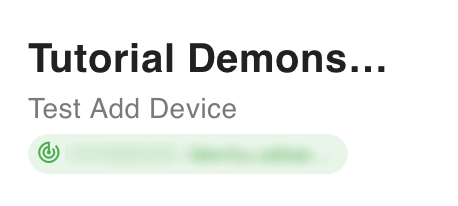
This section in the top left should show the the Device login's Organisation, Name and the currently connected scanning device.
Dashboard
Shows recent activity, split across workflow types and Event Groups.
Workflow Tabs
Shows activity information dependent on workflow set up for an Organisation.
Workflows and Sections:
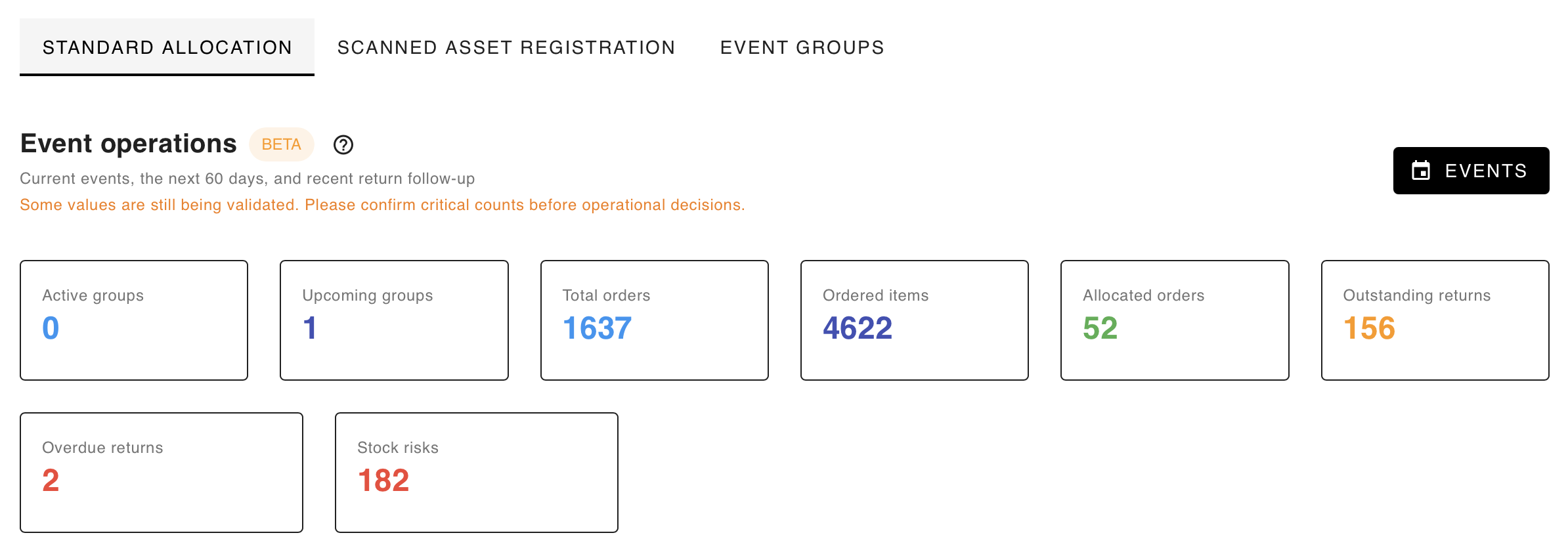
- Standard Allocation - The default tab.
- Statistics - Displays current status of groups, orders and returns.
- Attention needed - Shows orders that have incomplete allocations or overdue returns.
- Current and return follow-up - Shows current Event Group progress and all the orders inside it.
- Upcoming readiness - Shows Event Groups that don't have allocated items yet.
- Stock demand risk - Shows items required by Event Group orders, and the difference between demand and items actually owned.
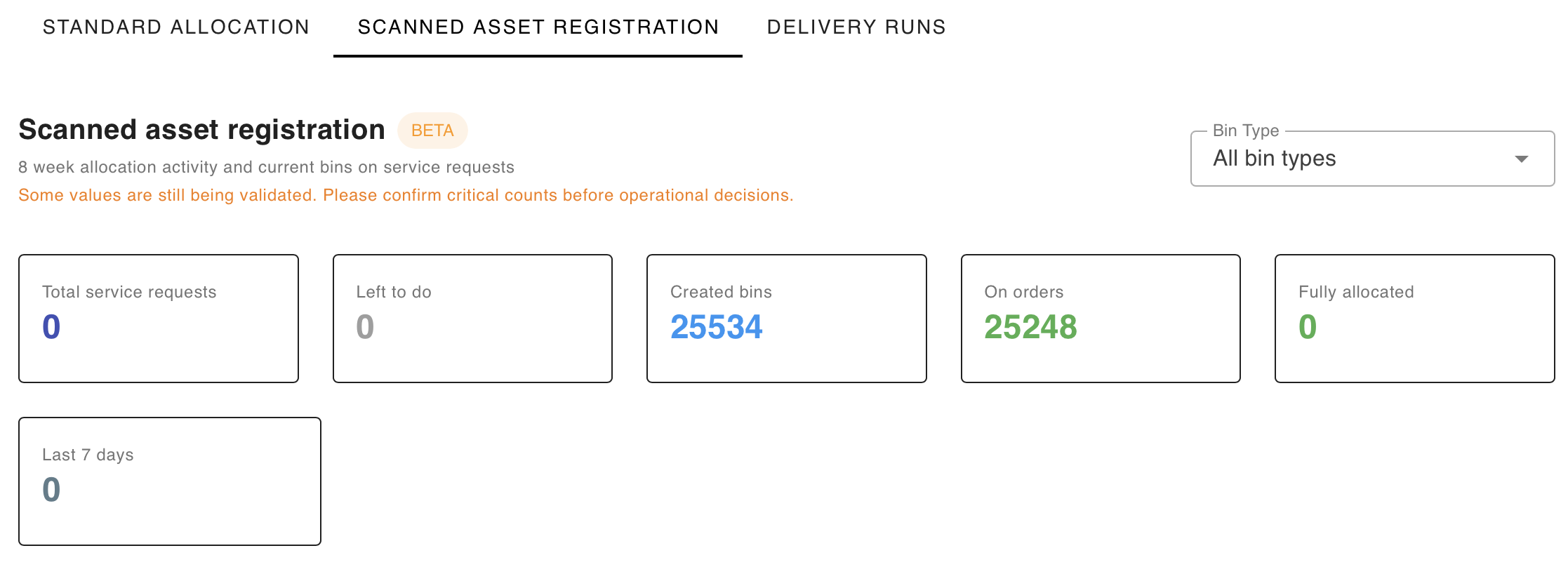
- Scanned Asset Registration - Will not display contents if the Organisation does not have this workflow set.
- Statistics - Displays status of orders, assets and allocations.
- Group breakdown - Shows Groups and the assets and orders under this.
- Workflow types - Shows asset types, the assets in this type, and how many orders the assets under this type are allocated to.
- Daily allocation activity - Shows a log of the amount of assets allocated daily.
- Weekly allocation activity - Shows a log of the amount of assets allocated weekly.
Event Groups
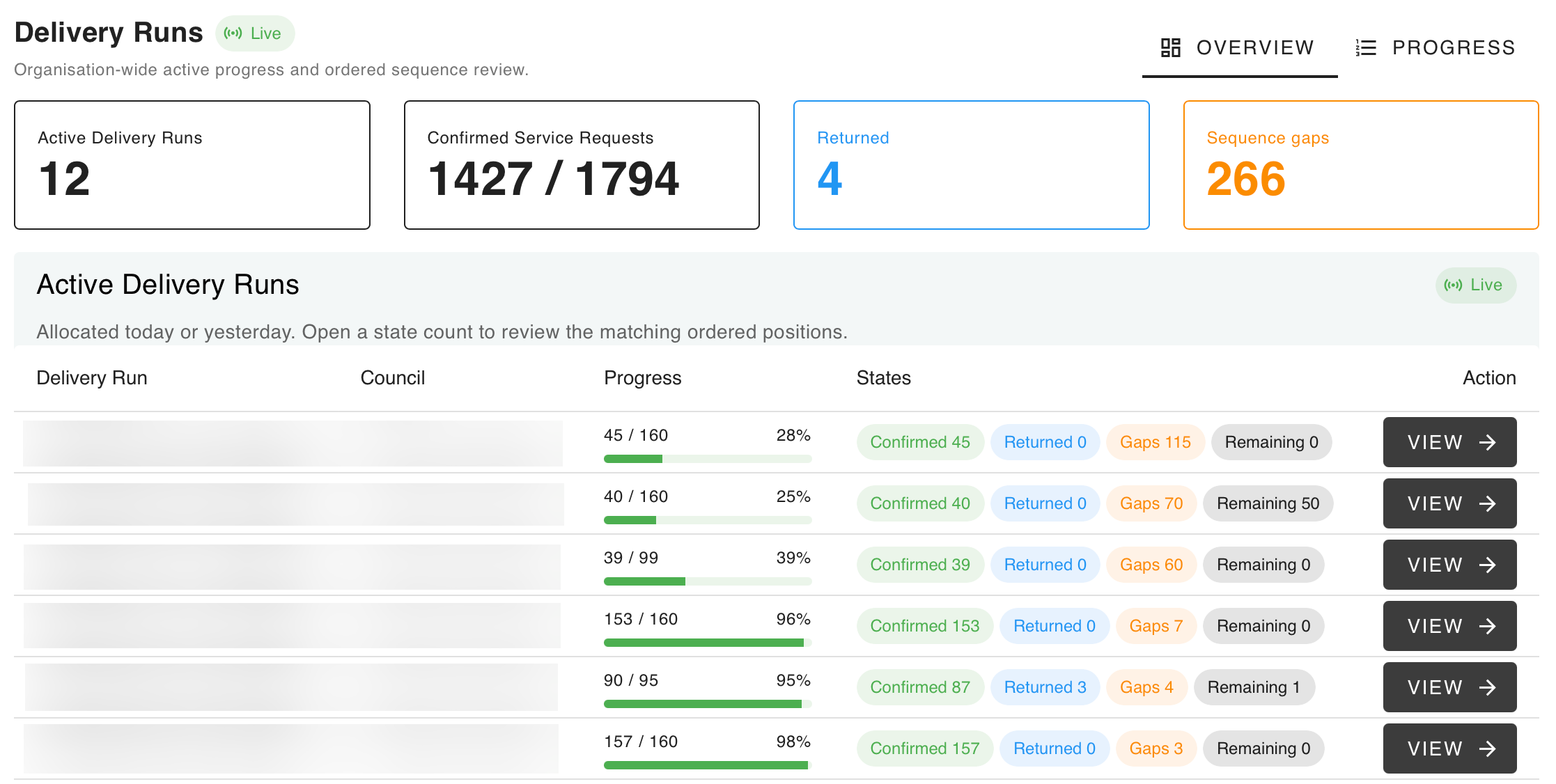
Shows active Event Groups and all progress. The pictured example says 'Delivery Runs' instead of Event Groups due to vocabulary tweaks.
Nested Tabs and Sections:
- Overview
- Statistics - Displays active Event Groups, order completion and errors.
- Active Event Groups - Shows a list of the progress of each currently active Event Group.
- Progress
- Event Group Progress - Shows the progress of an individual Event Group.
Issue
Uses a camera to scan QR codes as a way for searching up Orders. This is not a way to allocate an item to an Order; when issuing an item to an Order, go to Orders.
Return
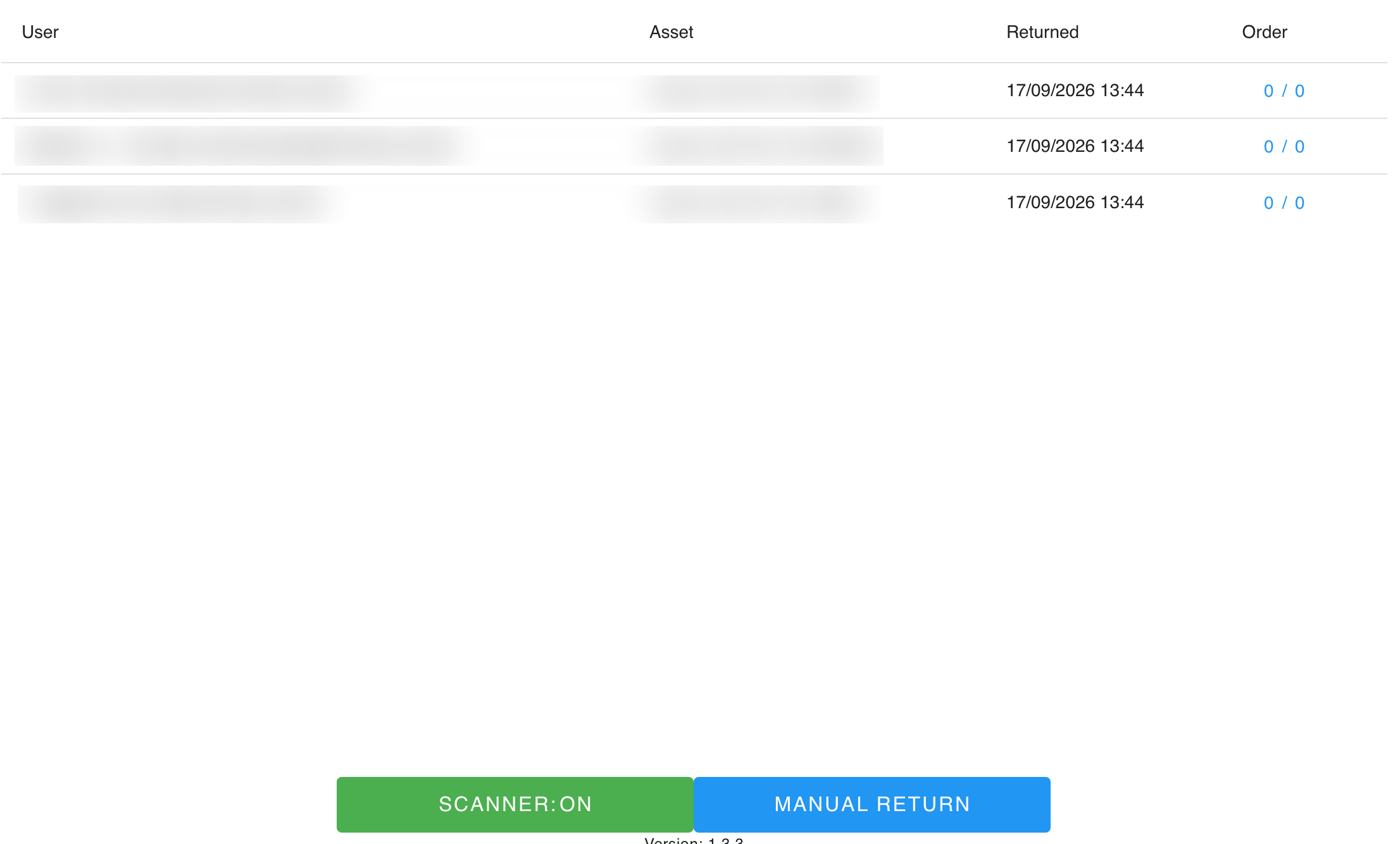
Allows automatic return of assets, activating just by being inside the tab. Displays a log of all returns made.
Related Walkthroughs:
Orders
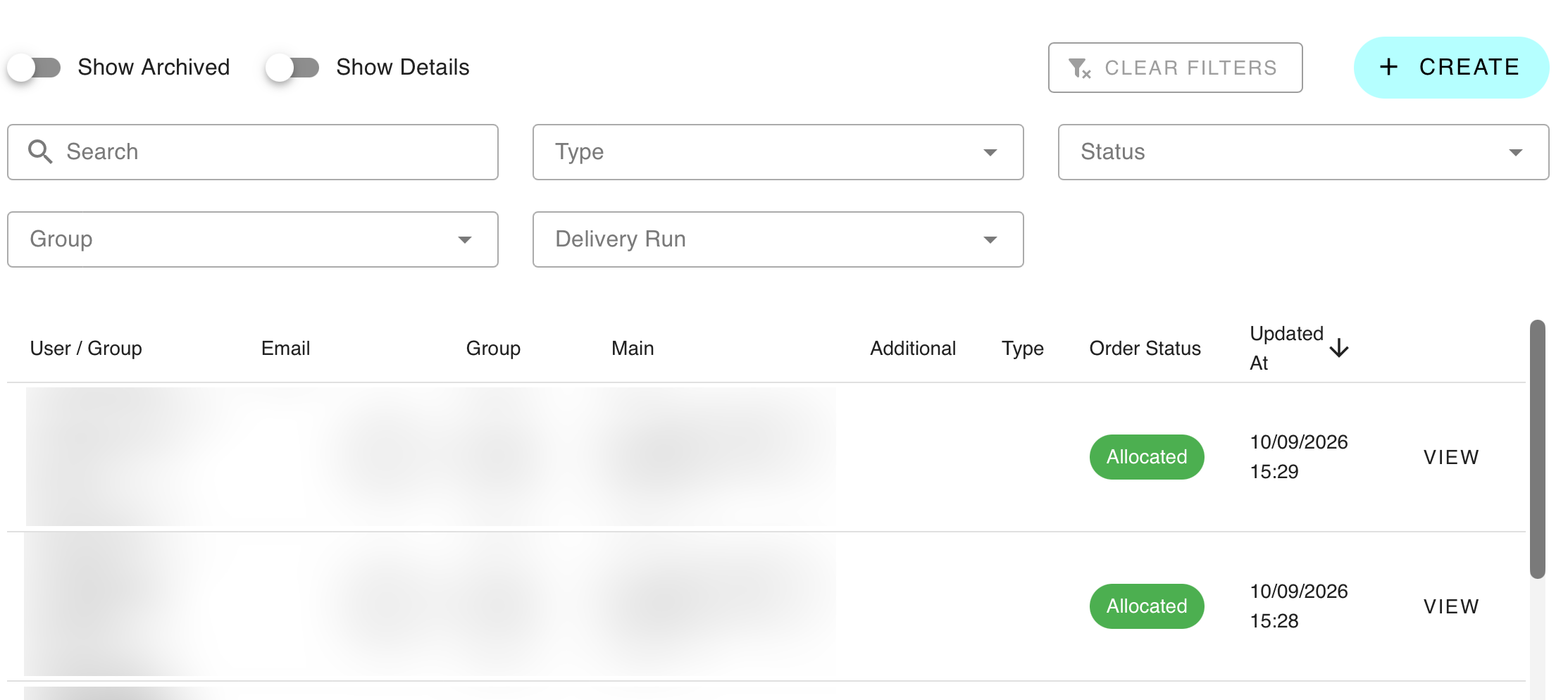
Views all Orders, along with the ability to manually create Orders and issue items to them.
Related Walkthroughs:
Additional Tabs
- Show Archived - Shows archived orders.
- Show Details - Shows amount of items currently allocated to each order, and allows exporting the list of items currently allocated. Will not export if Show Archived is also selected.
- Search Filters - Search based on order details.
- Order List - View Orders.
Viewing an Order
Related Walkthroughs:
Additional Tabs
- Details - Shows the details of an Order and currently issued Assets, allowing further returns and issuing of Assets.
- History - Shows a log of returns and allocations of Assets to this order.
- Integration - Shows the details of issuing Assets via API integration - that is, orders made from an external site.
Assets
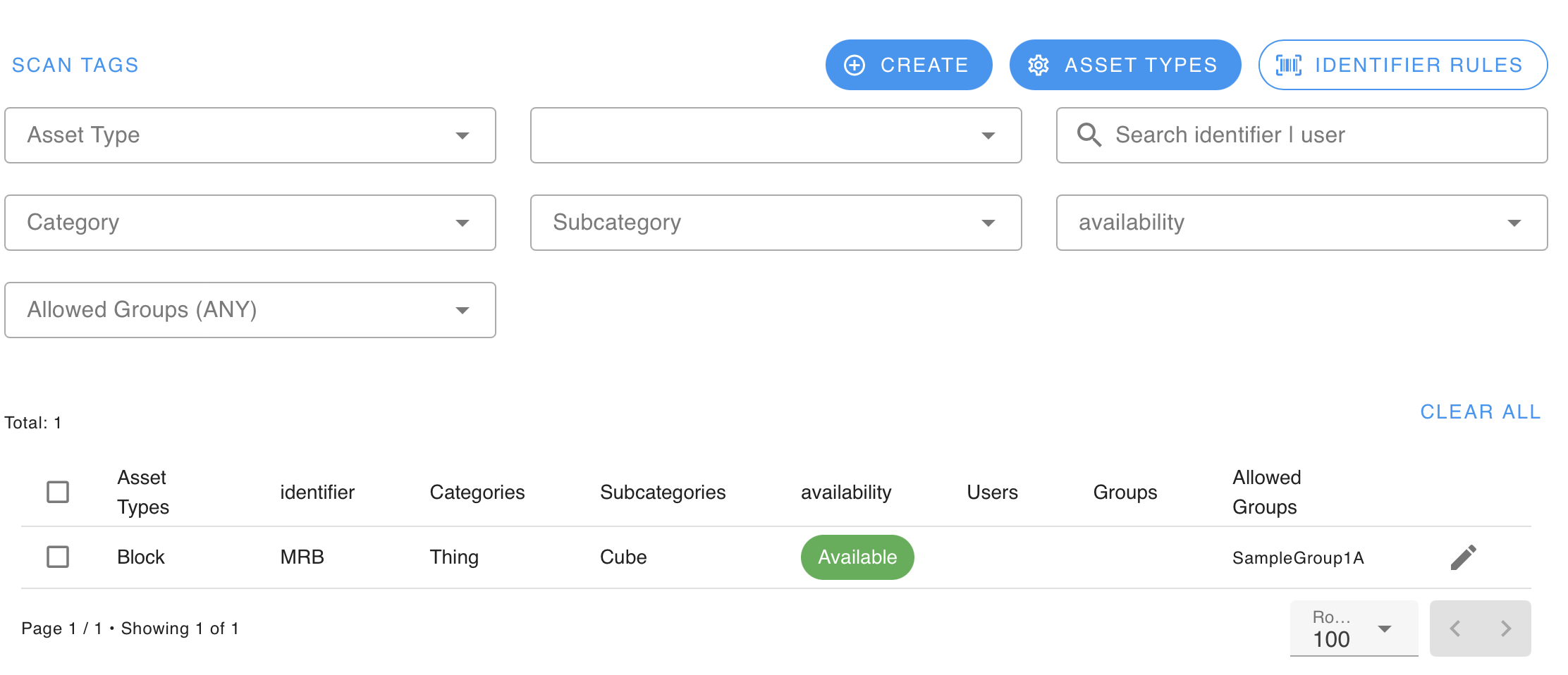
Views all Assets, with manually creating an Asset, their Types and their Categories.
Related Walkthroughs:
Users
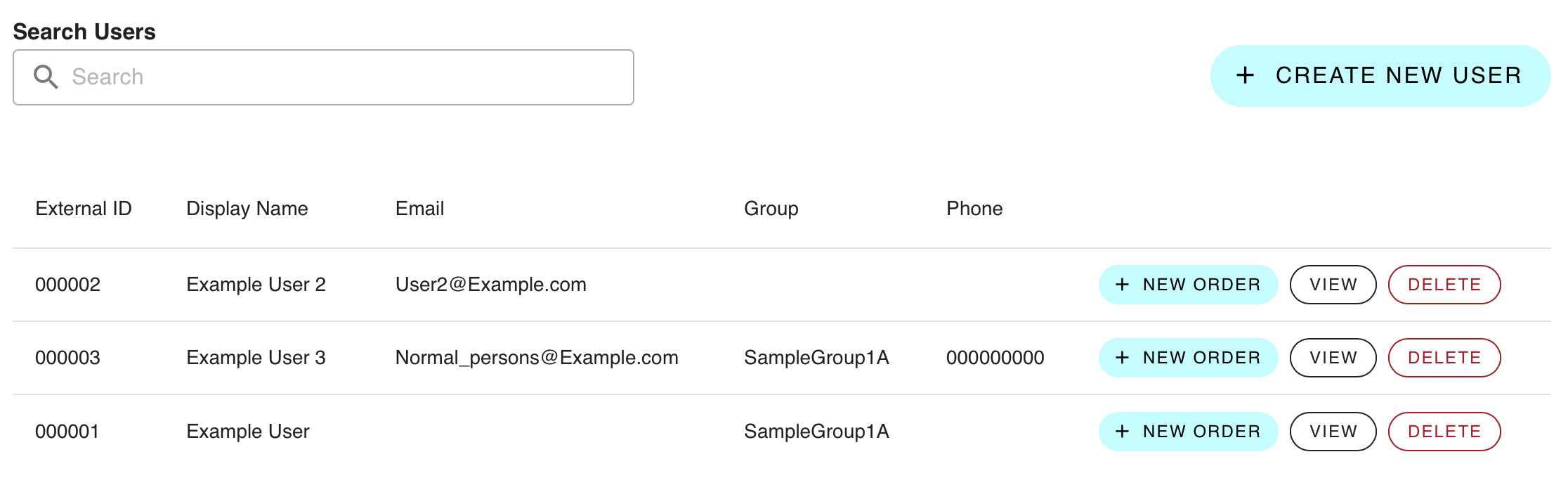
Views all Users, allowing creating Orders for any User, and creating and editing Users.
Related Walkthroughs:
Events
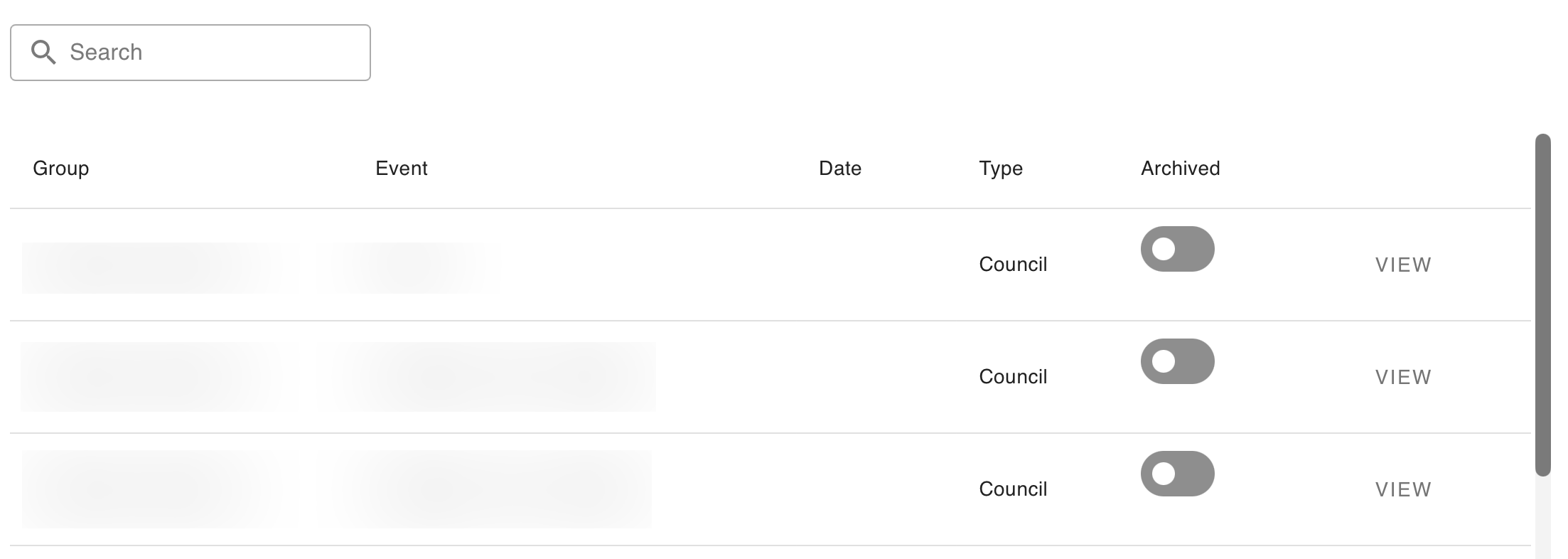
Views Event Groups, not Events, and their progresses.
Stock Take
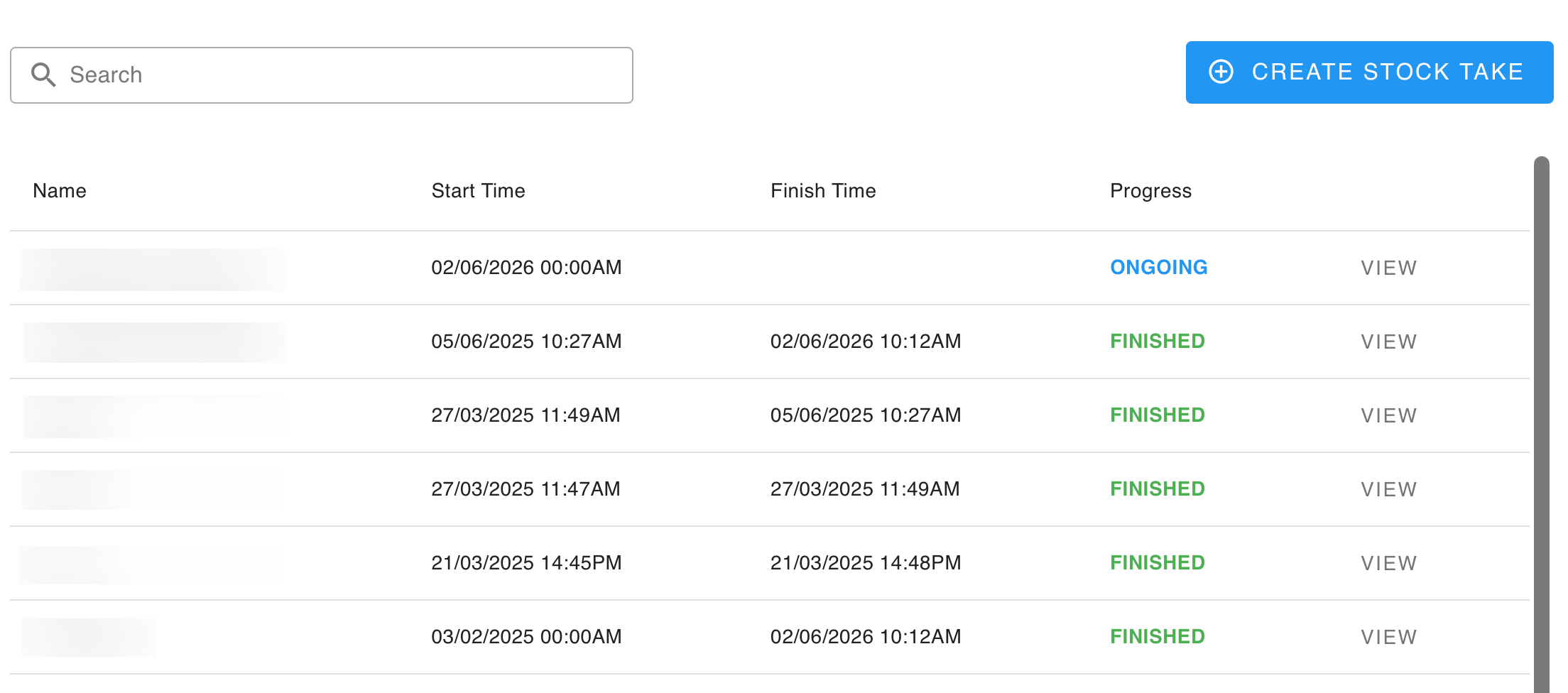
Views Stock Takes and allows making them. Stock Takes allow bulk-checking the presence of Assets against possible missing garments.
Related Walkthroughs:
Reports
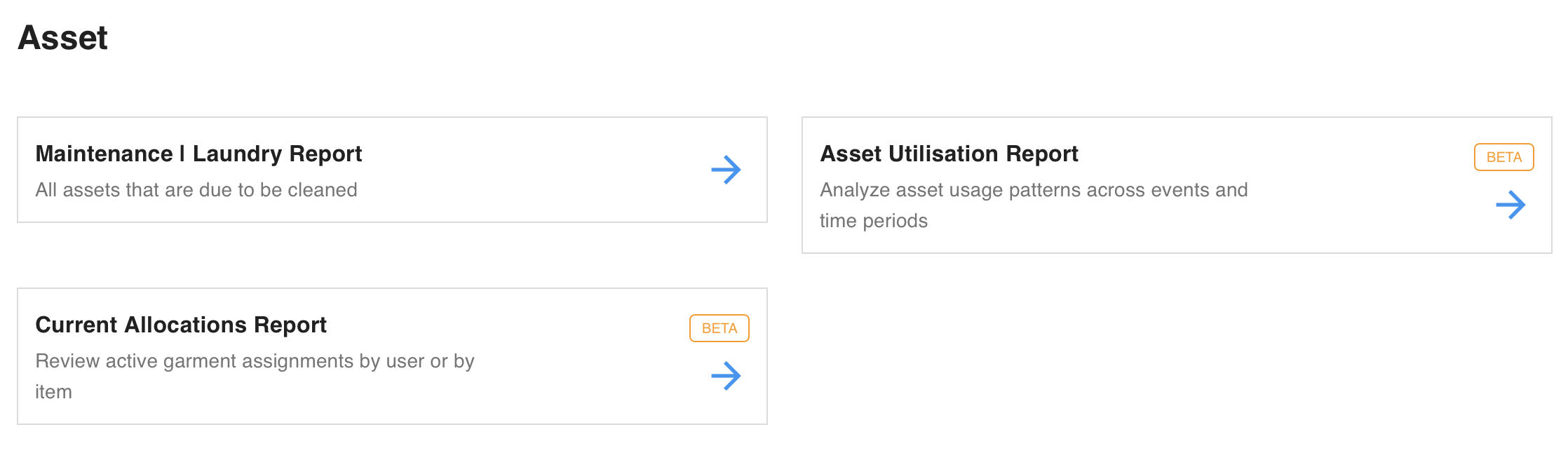
Generates various Reports for actions made in this Organisation.
Groups
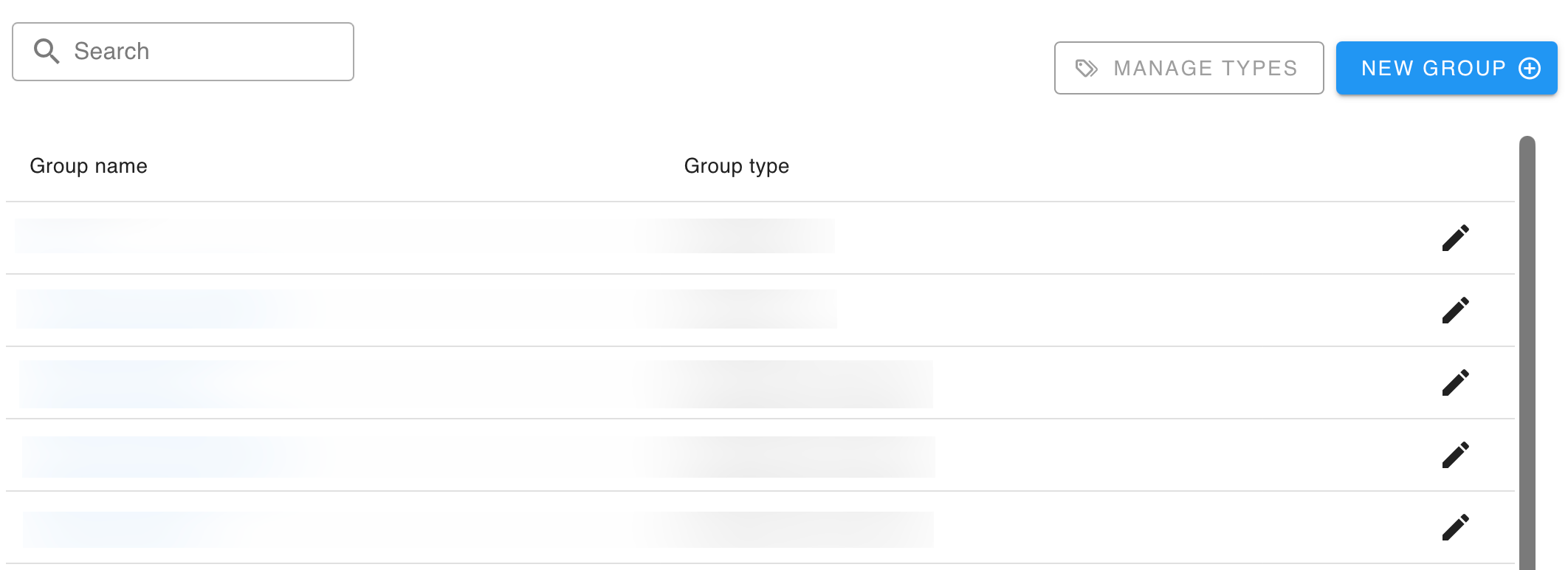
Allows editing Groups and Group Types.
Config
Settings.
RFID
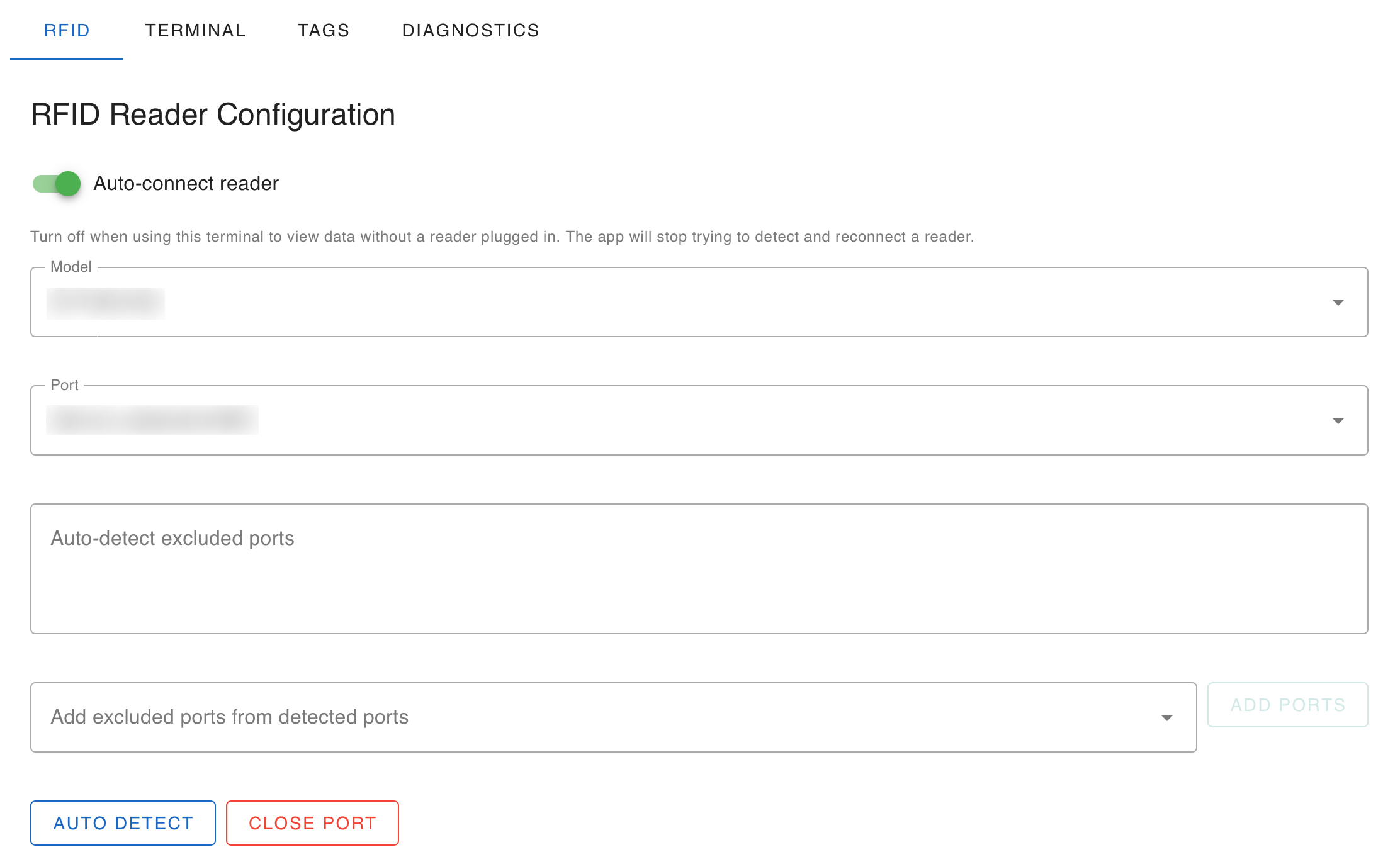
View and change the scanner intended to connect to this Terminal.
- Model - The model of the intended scanner.
- Port - The port where a scanner connects to the app.
- Exclusion of Ports - Manually typing in excluded ports.
- Excluding Detected Ports - Selection of excluded ports from existing known ports.
- Scanning Power - Determines the scanning power of the connected scanner.
- Reader Beep Toggles - Determines if either lets off a beep when scanning an item.
Terminal
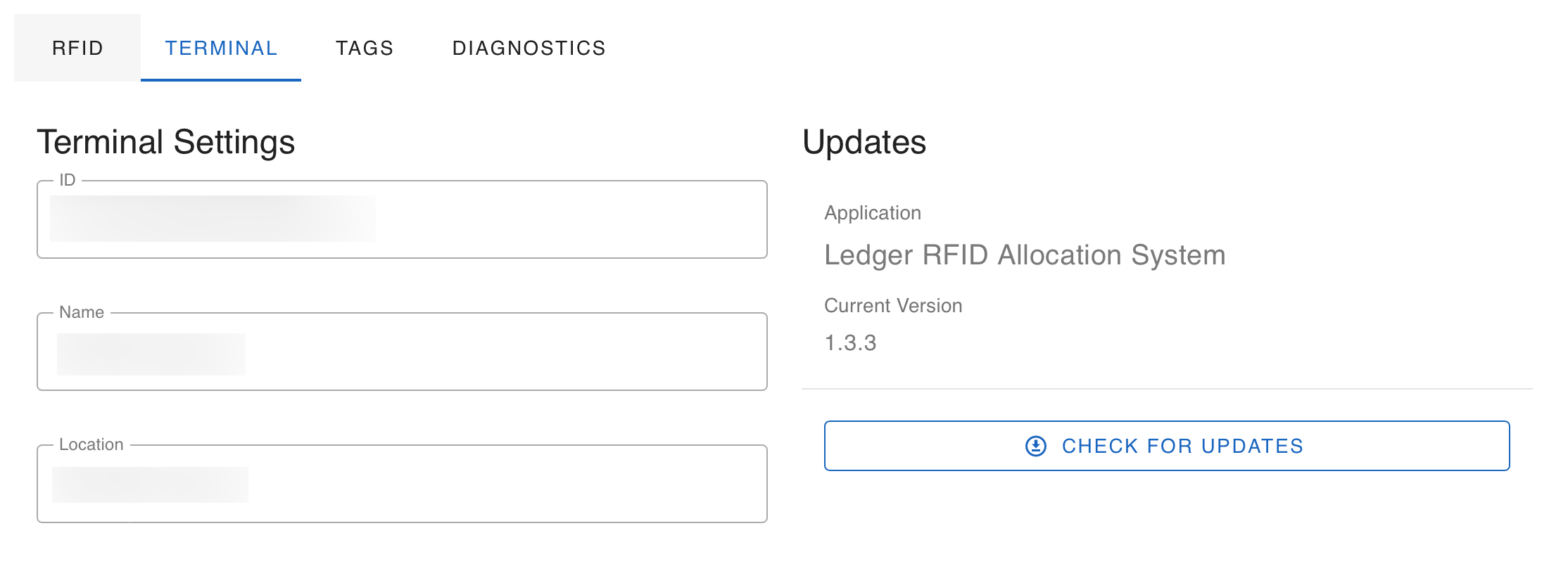
Shows the current Device 'profile' connected to the invite code used to log into the Desktop App.
Tags
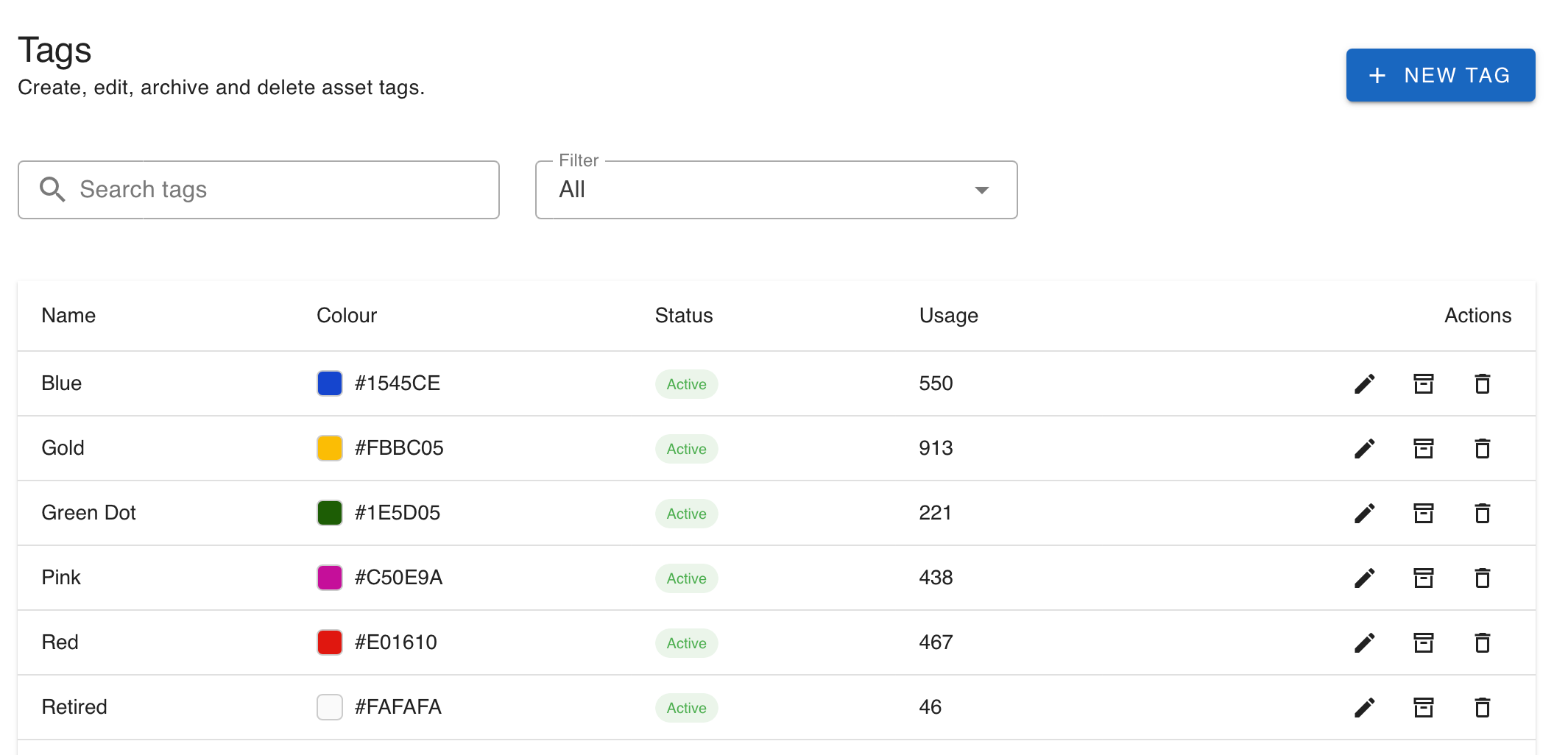
A way of categorising individually kept Assets despite having the same Asset Type.
It is recommended to use Asset Type properties instead of Tags; enabling Tags in an Organisation is permanent.
Diagnostics
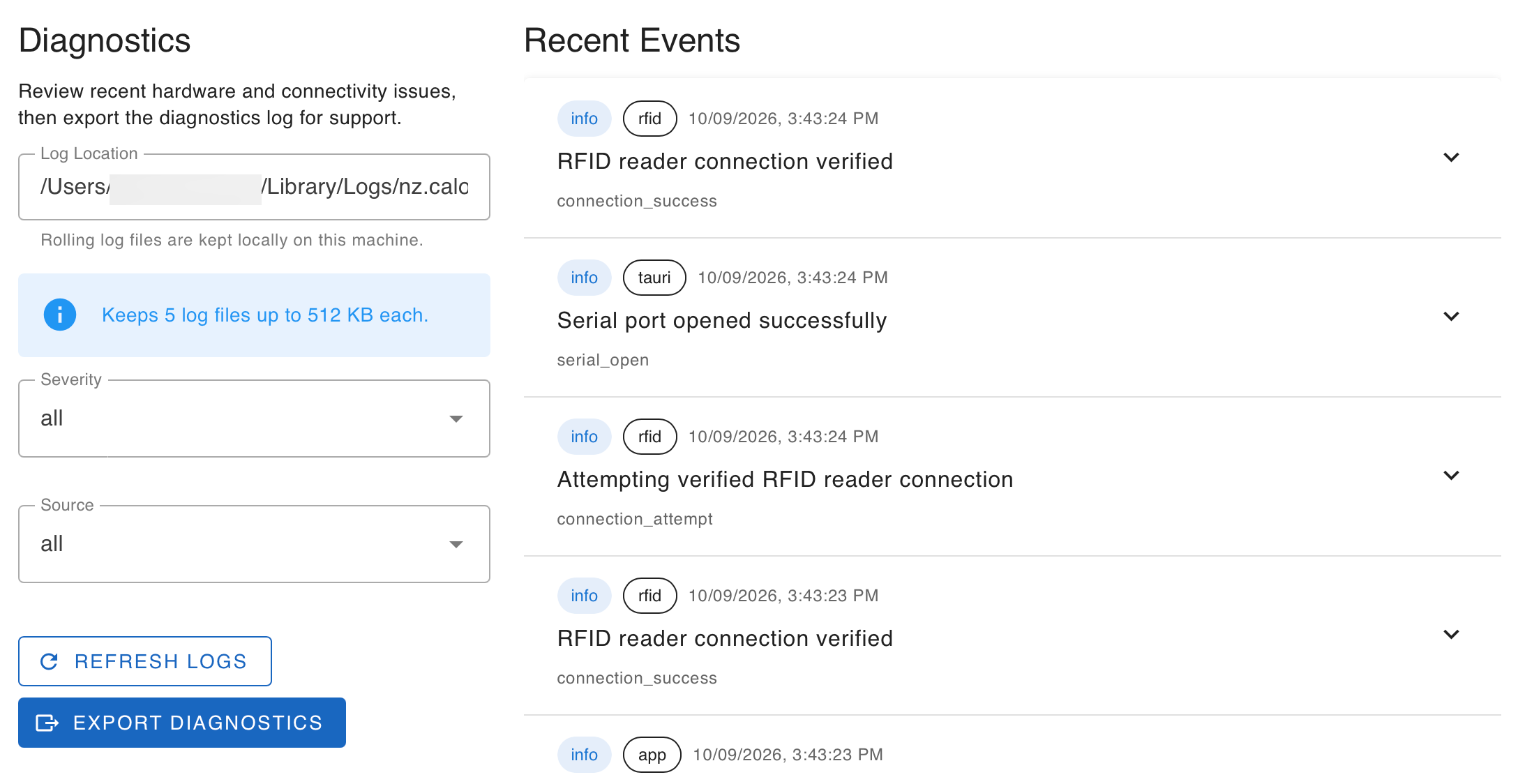
Presents a log of RFID reader connectivity.
Utility scanner
Allows testing the connected scanner without making actual changes to the actual Orders, Users or Assets.